Laptop Docking Setup Guide: Turn Your Laptop into a Full Desktop Experience (2025) 💻⚡
21 November 2025
Learn how to turn your laptop into a full desktop experience! This 2025 guide covers docking stations, dual monitors, external keyboards, and cable management for a clutter-free hybrid workspace.
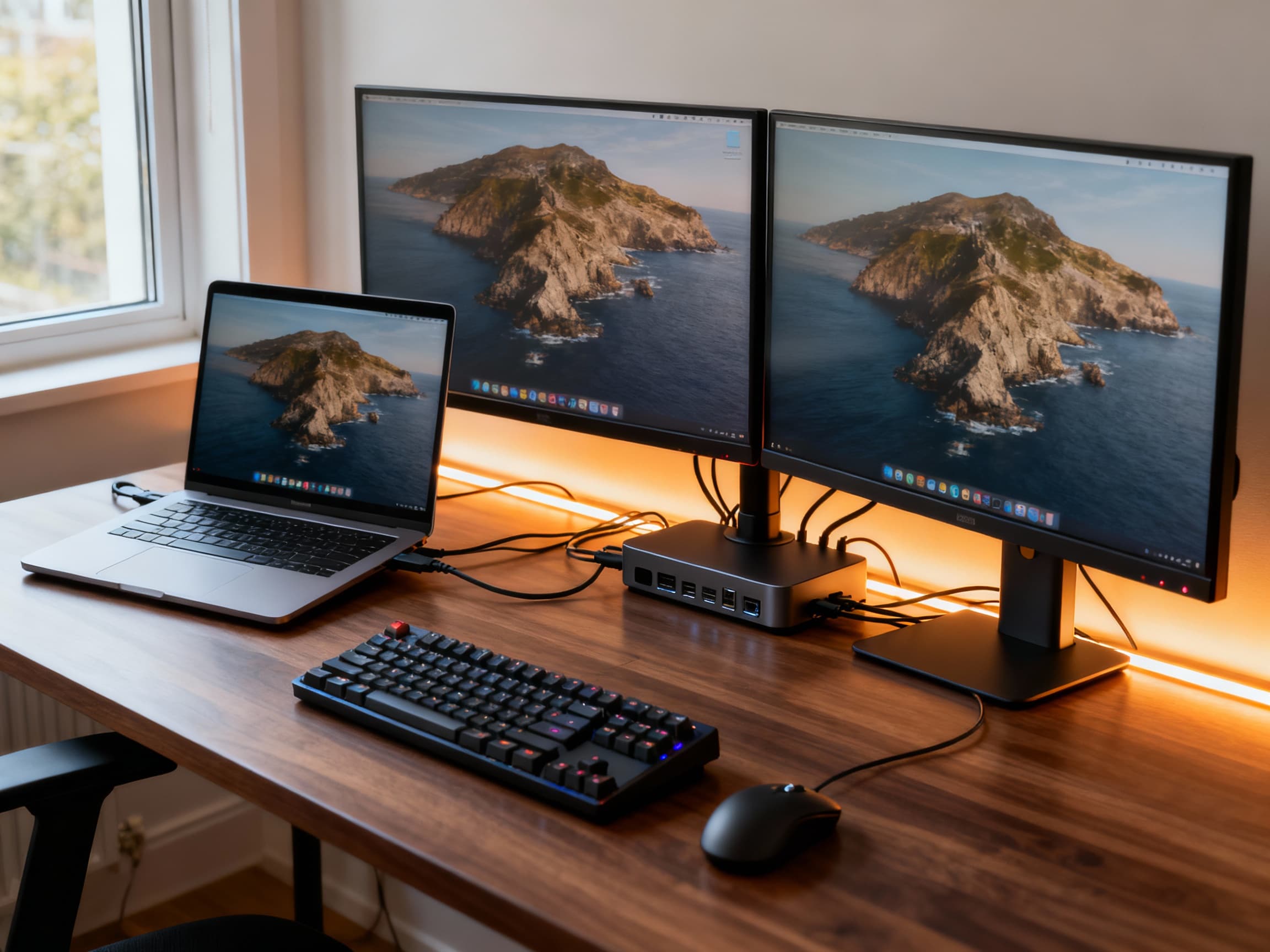
Your laptop is powerful - but let’s be honest, working long hours on a small screen and cramped keyboard isn’t ideal. Imagine connecting your laptop to a big monitor, full-sized keyboard, and high-quality peripherals - instantly transforming it into a full desktop experience. In 2025, laptop docking setups have become the secret weapon for hybrid professionals, gamers, and creators alike. Whether you’re working from home or switching between office and desk, this guide will show you how to create a clutter-free, ergonomic, and high-performance laptop workstation that feels like a premium desktop setup.
Laptop Docking Setup Guide (2025 Edition) 💻🔌
- Understand What a Docking Setup Really Is →
A laptop docking setup lets you connect all your devices - monitors, keyboard, mouse, speakers, storage, and even Ethernet - through a single hub. Instead of plugging cables one by one every time you sit down, you just connect one cable, and everything works. It’s perfect for hybrid users who move between work and home or anyone wanting the comfort of a desktop with laptop flexibility.
- Choose the Right Docking Station or Hub →
Not all docks are created equal. If you need multiple monitors and fast transfer speeds, look for a Thunderbolt 4 dock or USB-C hub with HDMI, DisplayPort, USB 3.2, Ethernet, and power delivery. Popular brands like Anker, CalDigit, and Dell offer reliable options. Make sure your laptop supports DisplayPort Alt Mode or Thunderbolt to handle external displays efficiently. The right dock turns your laptop into a productivity powerhouse.
- Connect External Monitors the Right Way →
Adding a monitor (or two) is the biggest upgrade you can make. Use HDMI or DisplayPort from your dock to your monitor for best results. Dual 1080p or a single 4K monitor gives you more workspace for multitasking, gaming, or editing. Mount your monitors on adjustable arms to save desk space and improve posture. Once you experience multi-monitor productivity, you’ll never want to go back to a 14-inch screen again.
- Upgrade Your Input Devices - Keyboard, Mouse, and Trackpad →
A comfortable keyboard and precision mouse can change everything. Mechanical keyboards offer tactile satisfaction, while ergonomic options help reduce wrist strain. Wireless peripherals keep your desk clutter-free - plus, many modern mice can switch between devices instantly, ideal for hybrid users. If you love gestures, pair your setup with an external trackpad for Mac-like multitasking fluidity.
- Add a Laptop Stand or Riser for Ergonomics →
Using your laptop flat on the desk isn’t ideal for your neck or airflow. A sturdy laptop stand lifts your screen to eye level and improves cooling. Some stands even integrate USB hubs or wireless charging pads. Align your laptop display with your external monitor for a seamless, multi-screen feel. Comfort and posture are key for productivity - and a good stand delivers both.
- Organize Cables for a Clean, Hybrid Look →
With multiple devices connected, cable clutter can get out of hand. Use cable sleeves, clips, and under-desk trays to route wires neatly. A docking station placed under your monitor or behind your desk keeps everything invisible yet accessible. Color-match cables with your setup theme for that clean, aesthetic look seen in pro workstations.
- Enhance Sound and Video for Meetings or Streaming →
If you work remotely or stream content, don’t rely on your laptop’s built-in mic or speakers. Add a USB condenser mic or Bluetooth headset for clear voice calls. External speakers or soundbars enhance immersion for music or video editing. Pair it with a quality webcam or mirrorless camera via a capture card for studio-grade video quality in meetings or recordings.
- Power Management and Cooling Tips →
Running multiple peripherals means more power draw. Use a dock with at least 65W-100W power delivery to keep your laptop charged while docked. Keep the setup well-ventilated - laptop coolers or stands with built-in fans help maintain performance. Avoid stacking items around vents, and occasionally clean dust filters to ensure efficient airflow and silent operation.
- Turn It Into a Dual-Purpose Work + Gaming Setup →
You can absolutely game on a docked laptop. Connect a gaming controller, external SSD, and low-latency monitor for smooth performance. Switch to a wireless headset and you’ve got an instant hybrid work-and-play station. It’s the best of both worlds - professional during the day, gamer by night - all from the same desk.
- Personalize Your Space for Focus and Flow →
Finally, make your setup feel like 'you'. Add LED backlighting behind your monitor, use a desk mat that complements your theme, or place a plant or small décor item for warmth. A workspace that reflects your style boosts motivation and reduces stress. A great setup isn’t just functional - it’s inspiring. Every time you dock your laptop, it should feel like stepping into your creative zone.
FAQs
Final Thoughts 💭
A laptop docking setup is the ultimate productivity upgrade - transforming your portable machine into a clean, powerful, and ergonomic workstation. It’s not just about connecting more devices; it’s about creating a workspace that adapts to you. Whether you’re editing videos, attending meetings, or gaming after hours, a well-planned docking setup saves time, boosts focus, and keeps your desk clutter-free. Start small, organize smart, and turn your laptop into the desktop experience you’ve always wanted. 💻✨